OpenAI Dots vs Grok Bot: one personal agent or a team of Bots?
A focused OpenAI Dots vs Grok Bot comparison: agent teams, memory, computers, scheduled work, voice, approvals, plans and EU/UK access.
The clearest difference is the unit of responsibility. OpenAI launches Dots with one primary personal Dot. Grok Bot lets you create a roster of Bots with different jobs, and those Bots can coordinate. Both offer persistent cloud work, memory, connected tools and approval points, but the way you organize work is different.
This article compares the OpenAI Dots launch with Grok Bot's current overview as of September 29, 2026. Product access and limits can change.
One Dot, or several Bots?
OpenAI says you can create your first Dot today and plans to let users add more over time. That makes a Dot a natural primary assistant: one place for goals, feedback, connected context and ongoing work. OpenAI is separately piloting specialist Dots with organizations; that pilot is not the same as a self-serve team of personal Dots.
Grok Bot starts with multiple named roles. A research Bot and an operations Bot can each keep their own conversation and memory, message each other and work together in a group chat. Its documentation says all of a user's Bots share one cloud computer, including files, browser sessions and app logins. That shared environment can speed handoffs; it also calls for careful boundaries around which Bot receives which job.
| Decision point | OpenAI Dots | Grok Bot |
|---|---|---|
| Starting shape | One primary Dot | Multiple named Bots |
| Cloud computer | Dot's own computer and browser | One shared computer for your Bots |
| Repeat work | Schedules and proactive research | Skills and routines, including supported event triggers |
| Feedback | Dot memory and preferences | Bot memory plus reusable skills from instructions or demonstration |
| Coordination | More Dots envisioned; specialist pilots | Bot-to-Bot messages and group chats documented now |
Which is better for recurring work?
Dots keeps one agent close to your ongoing priorities in ChatGPT. You can set a scheduled task, connect apps, review its activity and define Custom Rules. OpenAI says the Dot can also research proactively through read-only access to connected apps. Its getting-started guide describes what can be scheduled, paused and approved.
Grok Bot assigns repeatable processes to distinct roles. A Bot can save a successful process as a skill, then run it as a routine on a schedule or a supported trigger. Grok Bot's guide also describes teaching a workflow by demonstration where available. Test the skill before enabling a routine: a demonstrated path may miss exceptions and approval rules.
What about voice, apps and review?
OpenAI supports conversation with a Dot in ChatGPT and describes voice calls, Slack and Teams messaging, subject to rollout. Grok Bot's docs describe desktop and mobile text, dictation and voice chat. Both can use connected services and a browser. Both need the user to check consequential results. Dots expose Custom Rules and action review; Grok Bot documents personal and team Auto Review settings. These controls differ in implementation, so inspect the exact action and permission screen in the product you choose.
Can I use either in Europe or the UK?
OpenAI's launch excludes Pro Dots in the EEA, Switzerland and UK. It includes Business Premium across supported ChatGPT regions, and Enterprise beta can be enabled by an administrator. Gradual rollout still applies. The OpenAI Help Center is the current source for that distinction. Grok Bot's plan information lists eligible subscriptions, but check your account and current regional access before relying on it. See the EU/UK Dots guide.
Start with the computer behind the work
Dots centers one managed assistant; Grok Bot centers a roster of Bots. Matrix gives you a project computer you can operate with the agents you choose. Start with one Matrix task, correct the first result and repeat it. Inspect what context remains and whether the same review boundary holds. Try Matrix.
For the broader market, see Dots vs Grok Bot vs Meta Muse. If you want a computer you operate with several native coding agents, see Grok Bot vs Matrix OS and Dots vs Matrix OS.
Try a first task in Matrix
Ask a Dot and a Grok Bot to prepare the same source-linked weekly brief.
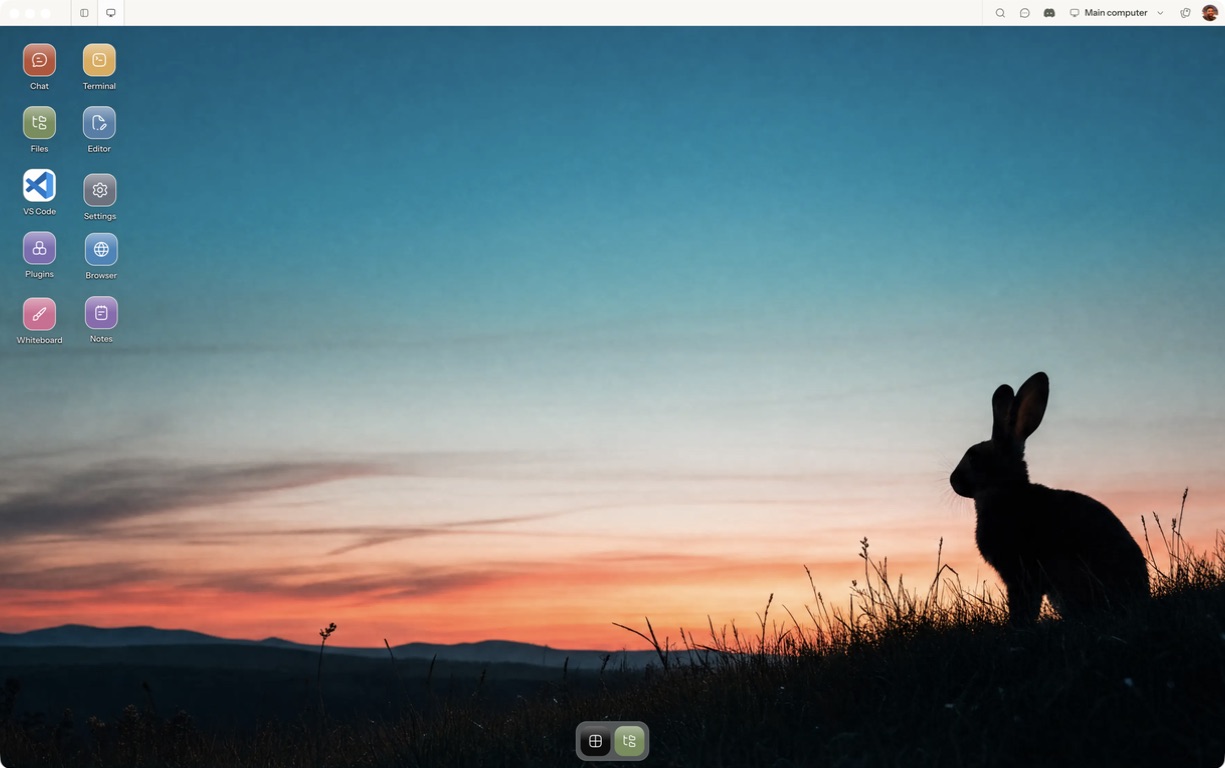
- Follow the quickstart to sign in, choose a computer and complete any required provisioning. To use the native app, follow the desktop installation and approval steps.
- Open a separate session with a small sample project or synthetic input. Configure the agent access needed for that task and make the expected output explicit.
- Inspect their outputs, memory behavior, schedules and access granted to connected apps.
For a worked coding example, use the setup and reconnect walkthrough. Inspect the result before expanding the scope or leaving a longer task unattended.
Open Matrix →Read the quickstart →Current plans and pricing →