Are OpenAI Dots available in Europe and the UK?
OpenAI Dots launch availability differs by plan: Pro excludes the EEA, Switzerland and UK, while Business Premium covers supported ChatGPT regions.
OpenAI Dots have a plan-specific launch in Europe and the UK. As of September 29, 2026, OpenAI says the Pro rollout excludes the European Economic Area (EEA), Switzerland and the UK. It also says Business Premium users can access Dots across supported ChatGPT regions, while Enterprise users need an administrator to enable the beta. The rollout is gradual even for eligible accounts. Read OpenAI's live eligibility guide before making a purchase or deployment decision.
| ChatGPT plan | EEA, Switzerland and UK launch position |
|---|---|
| Pro | Excluded from the initial Dot rollout |
| Business Premium | Available across supported ChatGPT regions, subject to gradual rollout |
| Enterprise, including Edu and Healthcare | Beta can be enabled by a workspace administrator |
This table reflects OpenAI's published Help Center wording on September 29, 2026. It is not a promise about a specific account or country.
Why do some people see “Dots not available” in the EU or UK?
The most likely explanation for a Pro subscriber in the EEA, Switzerland or UK is the initial regional exclusion. For an otherwise eligible Business Premium or Enterprise account, the feature may still be arriving gradually, or an Enterprise administrator may not have enabled the beta. OpenAI has not given a firm date for expanding Pro access to these regions in its launch materials. Do not infer one from the general statement that it plans to expand to more users.
Can a UK or EU business use Dots?
Potentially, yes. OpenAI explicitly describes Business Premium availability across supported ChatGPT regions. Enterprise beta is another path when an administrator enables it. Check the official eligibility and setup article and your workspace settings for the current state. “Dots are banned in Europe” would misstate OpenAI's published launch plan.
How do I start if my account is eligible?
Create a Dot in the ChatGPT desktop app or desktop web. Then review connected-app permissions, give it a small task and inspect the result before setting recurring work. Our first-day guide summarizes the steps and links back to OpenAI's controls.
What can I use while Pro access is unavailable?
Start from the work you need done. A normal ChatGPT conversation or other available ChatGPT tools may cover research and drafting. Matrix OS is built in Europe and supports EU and UK users who want a persistent computer for native coding agents and connected work. Its current setup guide lets you choose from available compute regions, including German locations documented in Settings and Billing. Check the live signup and checkout for your account and preferred region. A German compute location alone does not make a data-residency or regulatory promise about connected apps and model providers.
Matrix has supported connections, saved project context, Hermes workflows and background work on Builder or Max. The Dot's automatic personal memory, 4,000-app plugin catalog and ChatGPT voice calling are distinct features. See what Matrix OS is or the Dots vs Matrix comparison for the practical differences.
When should I check this page again?
OpenAI's rollout can change quickly. Use the OpenAI Help Center as the source of truth and check the update date above. We will update this article when the published plan or regional rules change.
Try a first task in Matrix
If your Pro account cannot access Dots, test a bounded coding task on a Matrix computer in an available region.
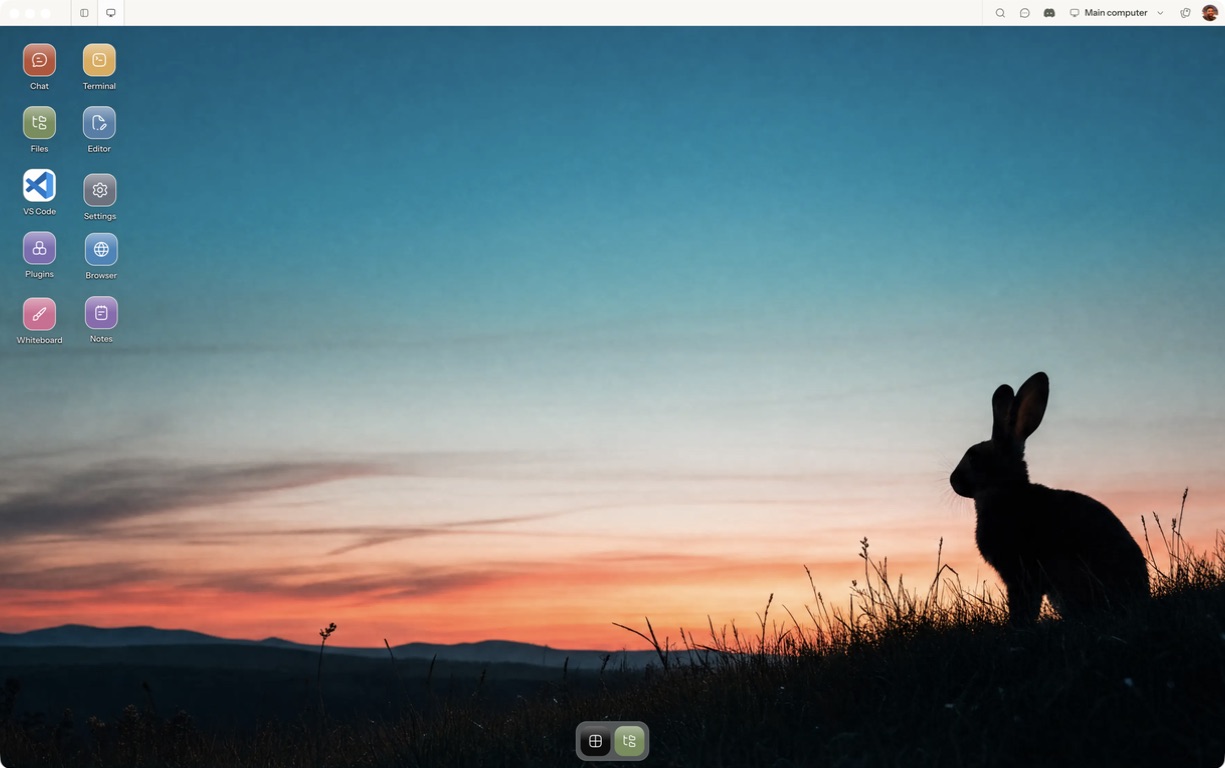
- Follow the quickstart to sign in, choose a computer and complete any required provisioning. To use the native app, follow the desktop installation and approval steps.
- Open a separate session with a small sample project or synthetic input. Configure the agent access needed for that task and make the expected output explicit.
- Confirm live signup eligibility, location, task output and product fit instead of assuming the two services are equivalent.
For a worked coding example, use the setup and reconnect walkthrough. Inspect the result before expanding the scope or leaving a longer task unattended.
Open Matrix →Read the quickstart →Current plans and pricing →