How to use OpenAI Dots: setup, first task and controls
A practical first-day guide to creating an OpenAI Dot, choosing connected apps, setting approval rules and reviewing its work. Includes plan and region checks.
To start with OpenAI Dots, check your eligibility, create your Dot on ChatGPT desktop or desktop web, connect only the apps a first task needs, and give it a bounded goal. Review its activity and approval rules before scheduling repeat work. OpenAI is rolling the feature out gradually, so an eligible account might not show it immediately. The authoritative steps and limits are in OpenAI's getting-started guide.
1. Check your plan and region
OpenAI says the launch covers Pro in eligible markets, Business Premium across supported ChatGPT regions, and an Enterprise beta enabled by a workspace administrator. Pro access initially excludes the EEA, Switzerland and UK. Feature rollout may take several days. If the Dot option is missing, confirm plan and region before troubleshooting. Our EU and UK availability guide breaks down the launch wording.
2. Create your Dot on a desktop
Open the ChatGPT desktop app or ChatGPT on a desktop browser and follow the Dot onboarding prompts. You can name your Dot during setup. OpenAI says you cannot currently create one in the mobile app or mobile web. After creation, you can message it through the ChatGPT mobile app when mobile access is available.
3. Connect one useful app, carefully
Connected apps give your Dot information it can use in tasks. Start with the smallest useful permission set for a first task. For example, a calendar read might support a schedule review without connecting every work system at once. Review the app's permission screen before connecting it.
OpenAI notes that disconnecting an app does not remove information the Dot already obtained from it. Its Help Center guide explains reset and deletion behavior. Access to your local computer is optional and initially off; your Dot already has its own cloud computer.
4. Give it one bounded job
Make the output and review point clear. A first prompt could be:
Review tomorrow's calendar and the project notes I connected. Prepare a short agenda with unresolved questions. Do not send messages or change events. Show me the sources you used.
You can answer follow-up questions in the conversation. The Dot's profile shows work in progress, scheduled work and completed work; you can also inspect its cloud computer. Verify the agenda against the source material before trusting it.
5. Set rules before wider actions
OpenAI's Custom Rules let you choose whether certain actions can proceed, require approval, or stay with you. Check the default rules and use explicit boundaries for sharing, purchasing and account changes. The Dot can still make mistakes, including when following rules. Review important results and approvals yourself.
6. Schedule only after the first run works
Once the bounded task is useful, ask your Dot to repeat it. OpenAI says scheduled tasks can be reviewed and changed in the Dot profile. You can pause the Dot when you do not want it to continue. A recurring task is easier to trust when you have already seen its sources, output and failure mode in a single run.
Can I use Dots from my phone?
OpenAI says creation starts on desktop. After setup, ChatGPT mobile app access may be available; mobile web is not supported at launch. Local computer access, messaging-channel setup and texting each have separate availability rules. Check OpenAI's current guide before planning a phone-only workflow.
What if I need a computer for several agent tools?
Dots are OpenAI's integrated personal-agent product. Matrix OS serves a different workflow: one persistent computer where you can run native tools such as Claude Code and Codex beside the same repositories, files and services. Read what Matrix is and its Quickstart if the computer and agent choice are the parts you need. For the product tradeoffs, see Dots vs Matrix OS.
Try a first task in Matrix
After testing a bounded Dot task, run one small repository change in a Matrix computer for comparison.
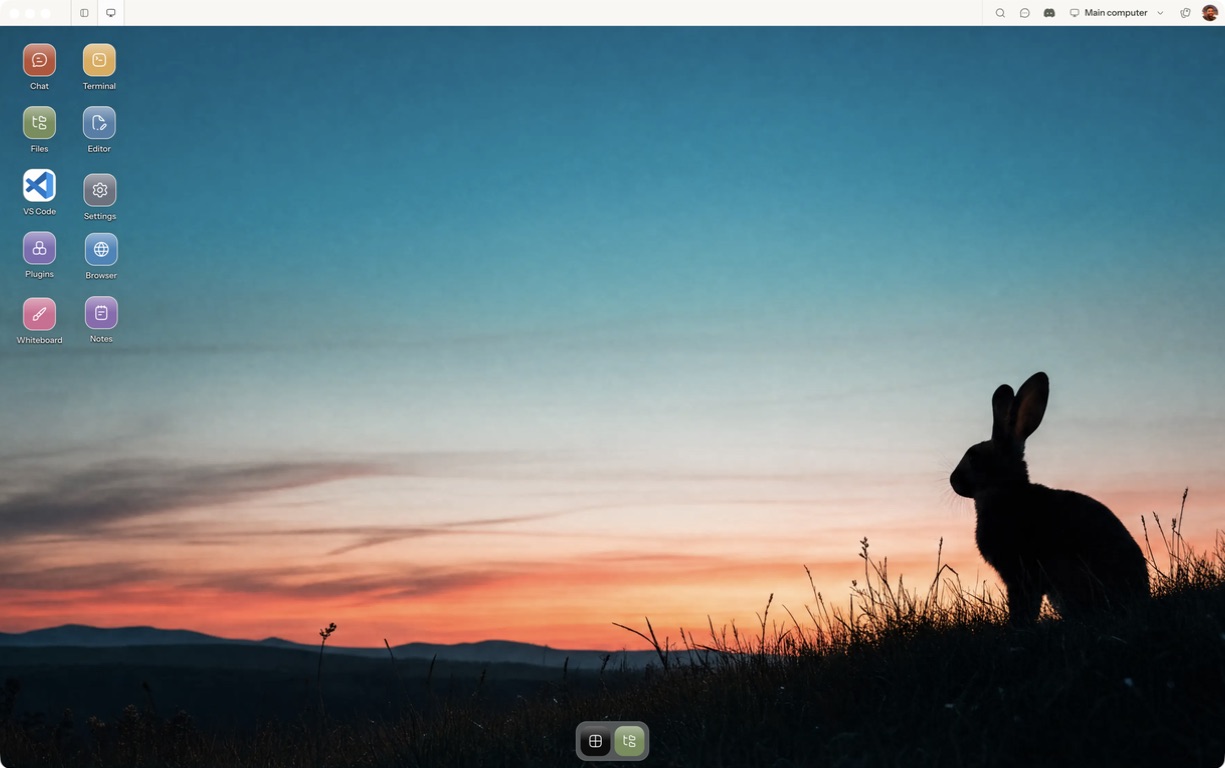
- Follow the quickstart to sign in, choose a computer and complete any required provisioning. To use the native app, follow the desktop installation and approval steps.
- Open a separate session with a small sample project or synthetic input. Configure the agent access needed for that task and make the expected output explicit.
- Inspect both outputs, connected permissions and whether you need app coordination or direct control of project state.
For a worked coding example, use the setup and reconnect walkthrough. Inspect the result before expanding the scope or leaving a longer task unattended.
Open Matrix →Read the quickstart →Current plans and pricing →