Grok Bot vs Meta Muse: AI bot team or personal agent?
Compare xAI Grok Bot and Meta Muse on multiple bots, shared computers, memory, automation, approvals and regional availability.
Grok Bot is a way to organize several named AI helpers; Muse is one personal agent for ongoing goals. Both can continue work when you leave the app, use a browser and keep context. The sharper choice is whether you want distinct roles and repeatable routines, or an assistant oriented around everyday services and purchases.
This comparison uses xAI's Grok Bot overview, its automation guide and Meta's Muse announcement as of September 29, 2026.
The key differences
| Question | Grok Bot | Meta Muse |
|---|---|---|
| Agent shape | Multiple named Bots that can coordinate | One personal Muse |
| Computer model | Your Bots share one cloud computer, files, browser and app sign-ins | Muse works in a dedicated Secure VM with a browser |
| Memory | Each Bot has its own conversations and memory | Muse builds personal memory across goals and connected context |
| Automation | Saved skills, scheduled routines and supported event triggers | Proactive suggestions and background tasks |
| Interaction | Text and voice on desktop or mobile, plus Bot group chats | Muse app and supported messaging, including WhatsApp |
| Purchases | Check the actual action and approval available to your Bot | Meta describes approved checkout through Link and a one-time card |
| Regional information | Verify Grok Bot eligibility for your account and plan | Meta's September 29 update says US and Canada |
When several Bots are useful
In Grok Bot, you can name and instruct Bots for different jobs. A research Bot can gather sources while another drafts a report, and they can collaborate in a group chat. xAI says each Bot maintains separate conversations and memory. They still share the same cloud computer under your account, including files and connected app sessions. That shared environment can make a handoff easy, but a Bot name is not a separate security boundary. Set permissions according to what all your Bots can reach.
If you repeat a process, xAI documents skills and routines that can run on a schedule or supported trigger. Test the trigger and approval behavior with a harmless task before connecting live accounts. xAI describes Grok Bot as a beta and ties access to eligible paid plans; check its get-started documentation for your account.
When Muse is useful
Meta tells the Muse story through outcomes such as organizing a trip, handling email and working through a purchase. The agent has a browser environment, ongoing context and approval boundaries. Meta describes an audit trail, which is especially useful when an agent proposes or takes actions across services. The September 29 small-business update adds integrations for tools such as Asana, Canva, Figma, QuickBooks, Shopify and Slack.
Muse has the more explicit approved checkout story: Meta describes using Link and a one-time card. Review what gets charged, which account is connected and what requires confirmation. Do not assume every shopping or payment flow works the same way.
EU and UK availability
Meta's latest announcement describes Muse as available in the US and Canada. xAI's Grok Bot documents describe plans and onboarding, but those sources do not establish a blanket EU or UK availability rule. Check your Grok Bot account directly. Avoid treating access to the Grok model as proof of access to Grok Bot.
For EU or UK teams whose central requirement is a persistent project computer, Matrix OS offers German compute regions and native coding-agent choice. Its purpose differs from Muse's packaged consumer assistant and Grok Bot's named Bot roster; see Grok Bot vs Matrix and Muse vs Matrix.
Put the durable work in Matrix
Grok Bot packages several roles and saved routines. Muse packages everyday goals and approved commerce. Matrix gives project work its own computer, with files and agents you can inspect and change. Give Matrix one small task with a clear output and approval boundary, then review the result in the quickstart. For the wider field, see the nine-product comparison.
Try a first task in Matrix
Assign a small repeatable planning task to an eligible Bot and Muse account.
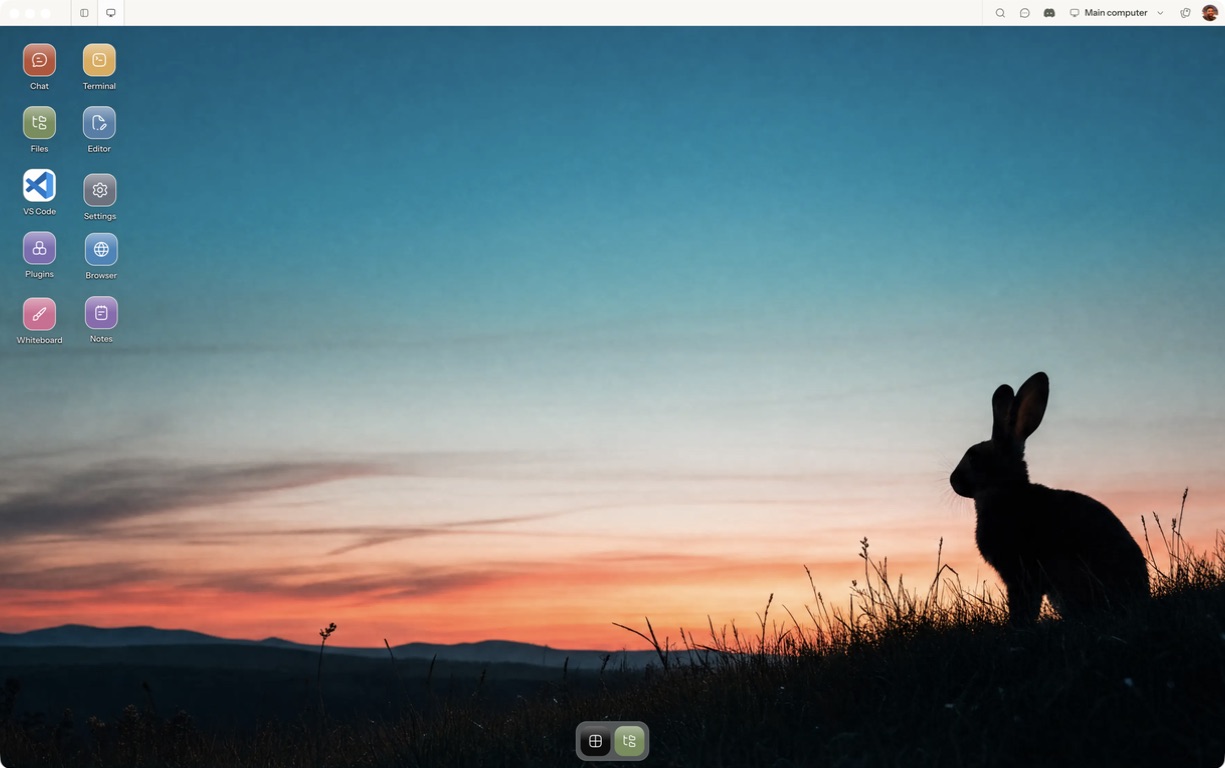
- Follow the quickstart to sign in, choose a computer and complete any required provisioning. To use the native app, follow the desktop installation and approval steps.
- Open a separate session with a small sample project or synthetic input. Configure the agent access needed for that task and make the expected output explicit.
- Compare Bot roles, shared computer access, approvals and what persists after the app closes.
For a worked coding example, use the setup and reconnect walkthrough. Inspect the result before expanding the scope or leaving a longer task unattended.
Open Matrix →Read the quickstart →Current plans and pricing →