How to keep Codex CLI running after you close your laptop
Run Codex CLI on a persistent remote computer so terminal work continues after your laptop sleeps or disconnects.
To keep Codex CLI running after closing your laptop, start it on a remote computer that remains online and use a persistent terminal session. Closing the laptop then disconnects your interface rather than suspending the computer executing Codex. Codex cloud is another remote option, but it is a different workflow from a long-lived CLI environment.
Why does Codex CLI stop when the laptop sleeps?
Codex CLI works against the files and tools available on the machine where the command runs. If that machine is your laptop, sleep freezes or stops useful execution. An SSH connection alone is not sufficient either: a process attached directly to a dropped shell can terminate.
You need two layers:
- An underlying computer that stays running.
- A terminal session that survives client disconnection.
Use Codex cloud for delegated repository tasks
Codex cloud is the low-operations option for delegated cloud tasks. Choose it when your work fits the cloud task and repository workflow. It removes the need to keep a laptop awake or maintain a VPS.
A persistent personal computer is a better fit when the task depends on long-lived services, files outside one repository, several agent CLIs, custom databases, or a development environment you want to revisit continuously.
Use a VPS when you want to operate the environment
Provision a secured Linux VPS, create a non-root user, install the project toolchain, and install Codex using OpenAI’s current official installer. Sign in through the supported Codex login flow. Do not copy private credential files from another computer.
Run Codex inside a persistent terminal:
tmux new -s codex
cd ~/projects/my-repo
codex
Detach with Ctrl-b, then d. Reconnect later with tmux attach -t codex. A persistent terminal survives an SSH disconnect. It does not survive a stopped server, reboot, crash, full disk, or out-of-memory event by itself.
Use a persistent workspace for a long-lived CLI environment
Matrix gives Codex a dedicated remote computer with files, terminals, browser access, and persistent named sessions. After following the Matrix quickstart, start Codex in a named session:
matrix run -it --session codex-main -- bash -lc 'cd ~/projects/my-repo && codex'Detach with Ctrl-\ Ctrl-\ and return through the browser or Matrix CLI. The session runs on the Matrix computer, so your laptop can sleep.
What should a persistent Codex session be allowed to do?
Put every writing session on a dedicated branch or worktree. Define the allowed scope, tests, and stopping conditions. Keep production credentials out of the workspace and require human review before merging or deploying.
For repeatable non-interactive automation, Codex also supports codex exec. Treat it like CI. Constrain inputs, permissions, network access, time, and output artifacts. An open-ended prompt with a writable shell is not a job definition.
Common questions about persistent Codex CLI sessions
Is Codex cloud the same as Codex CLI on a VPS?
No. Codex cloud runs tasks in OpenAI’s cloud workflow. A VPS runs the CLI in a server environment you provision and operate.
Can Codex and Claude Code run on the same remote computer?
Yes. Give them separate terminal sessions, branches or worktrees, ports, and development databases. See running Claude Code and Codex in parallel.
Does tmux keep Codex alive through a server reboot?
No. It preserves a session across terminal disconnects, not machine shutdowns. Reboot recovery requires a deliberate restart mechanism and careful handling of interactive agent state.
Try a first task in Matrix
Run Codex in a named remote session on one bounded task.
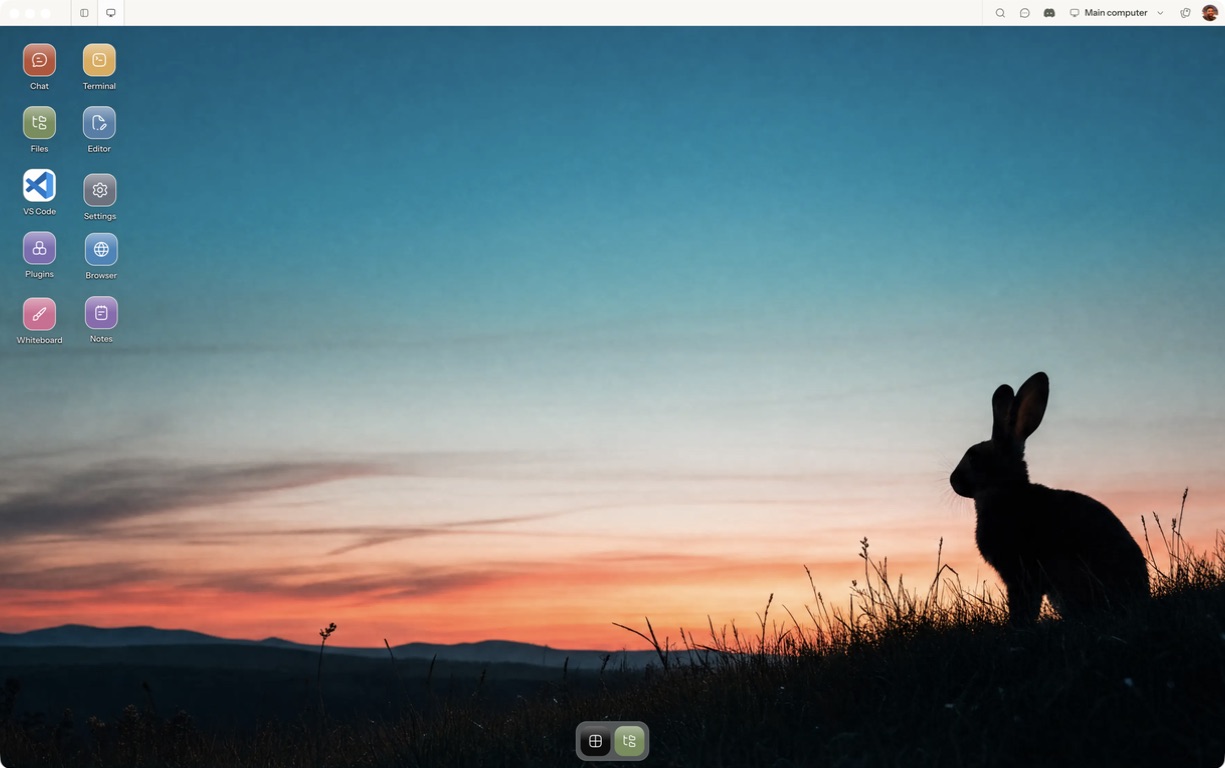
- Follow the quickstart to sign in, choose a computer and complete any required provisioning. To use the native app, follow the desktop installation and approval steps.
- Open a separate session with a small sample project or synthetic input. Configure the agent access needed for that task and make the expected output explicit.
- Reconnect to the existing session and inspect saved progress before restarting the agent.
For a worked coding example, use the setup and reconnect walkthrough. Inspect the result before expanding the scope or leaving a longer task unattended.
Open Matrix →Read the quickstart →Current plans and pricing →