Why your agent needs its own computer
Keep projects, tools and integrations together in a persistent cloud workspace. Explore the tradeoffs and set up your first useful agent task.
Your agent can write code, use tools and produce useful work. It also needs somewhere to do that work: files, dependencies, a terminal and the connections it uses to reach your apps.
If you already use Claude Code or Codex, you know that environment matters. Closing your laptop should not mean closing the computer doing the work. A cloud workspace lets you disconnect the viewing device while the remote computer remains available.
Matrix OS brings that environment together in an always-on agent computer from $20/month. AI access and usage are separate. Start with one task you can inspect, then expand the workflow when it proves useful.
A place for the work you return to
A single prompt is rarely the whole job. A repository task needs source files, packages, a working directory and a way to inspect the result. An operations brief needs authorized sources and somewhere to save its findings. An internal tool needs a home after the first version is generated.
A persistent workspace keeps those pieces together across sessions. You can return to the same projects, use installed tools and inspect the environment directly. Integrations connect supported services such as GitHub, Slack and Google Drive after you authorize them.
That continuity is the useful part. It lets you spend more time on the task and less time rebuilding the setup around it.
A place to begin.
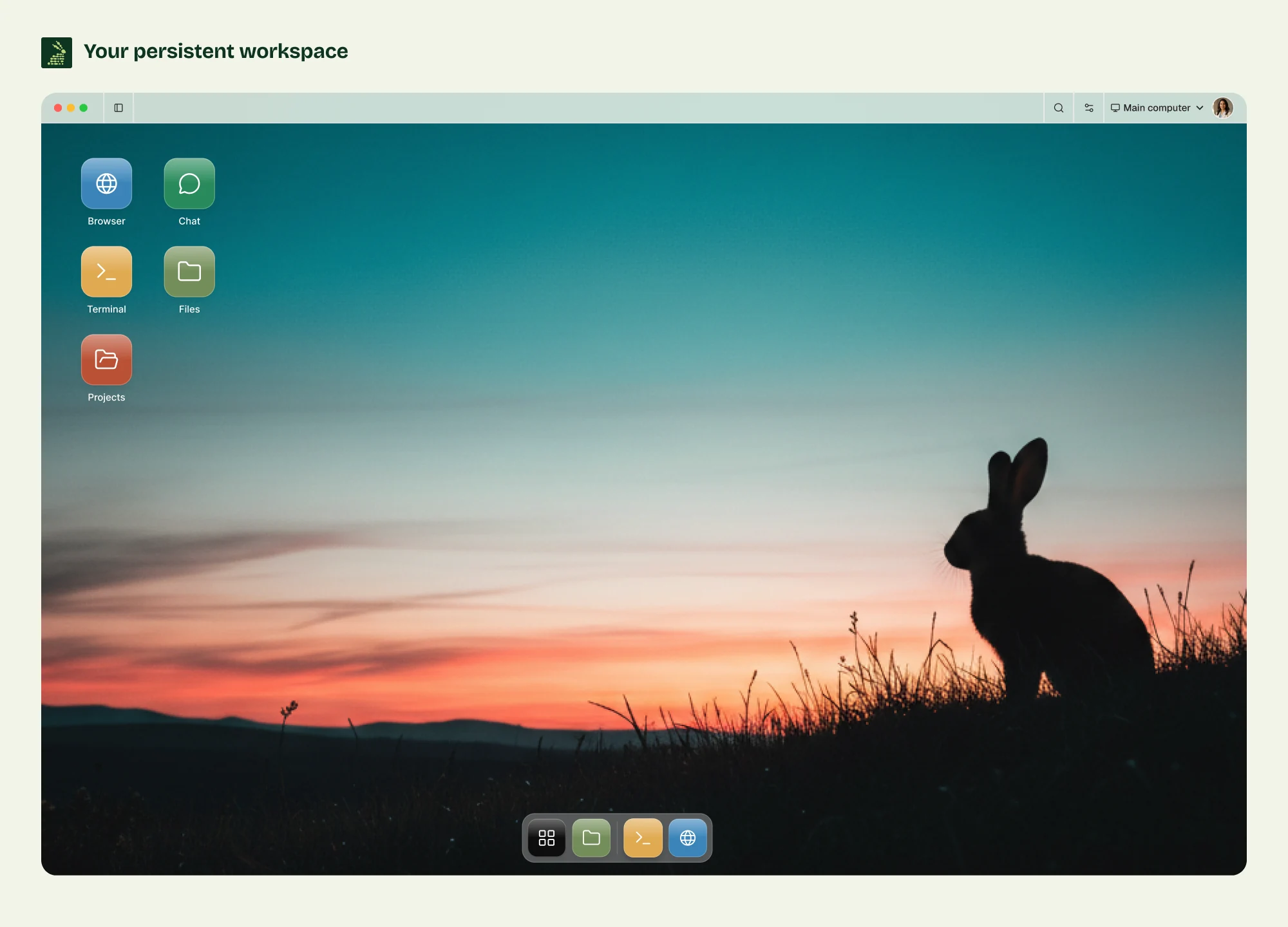
01 A computer
Give your agent a place to work.
A conversation is where a task begins. A computer is where the work happens: a terminal, a project, the tools it needs, and somewhere to save the result.
Matrix brings that environment together on your own private cloud computer.
Meet your computer02 Your agents
The agent you choose. The tools it needs.
Use Claude Code, Codex, or another supported agent with a real terminal and project files. Install the tools your work calls for, rather than rebuilding your environment around every task.
Use separate sessions and Git worktrees when agents edit in parallel. Review the changes before you ship.
Explore supported agents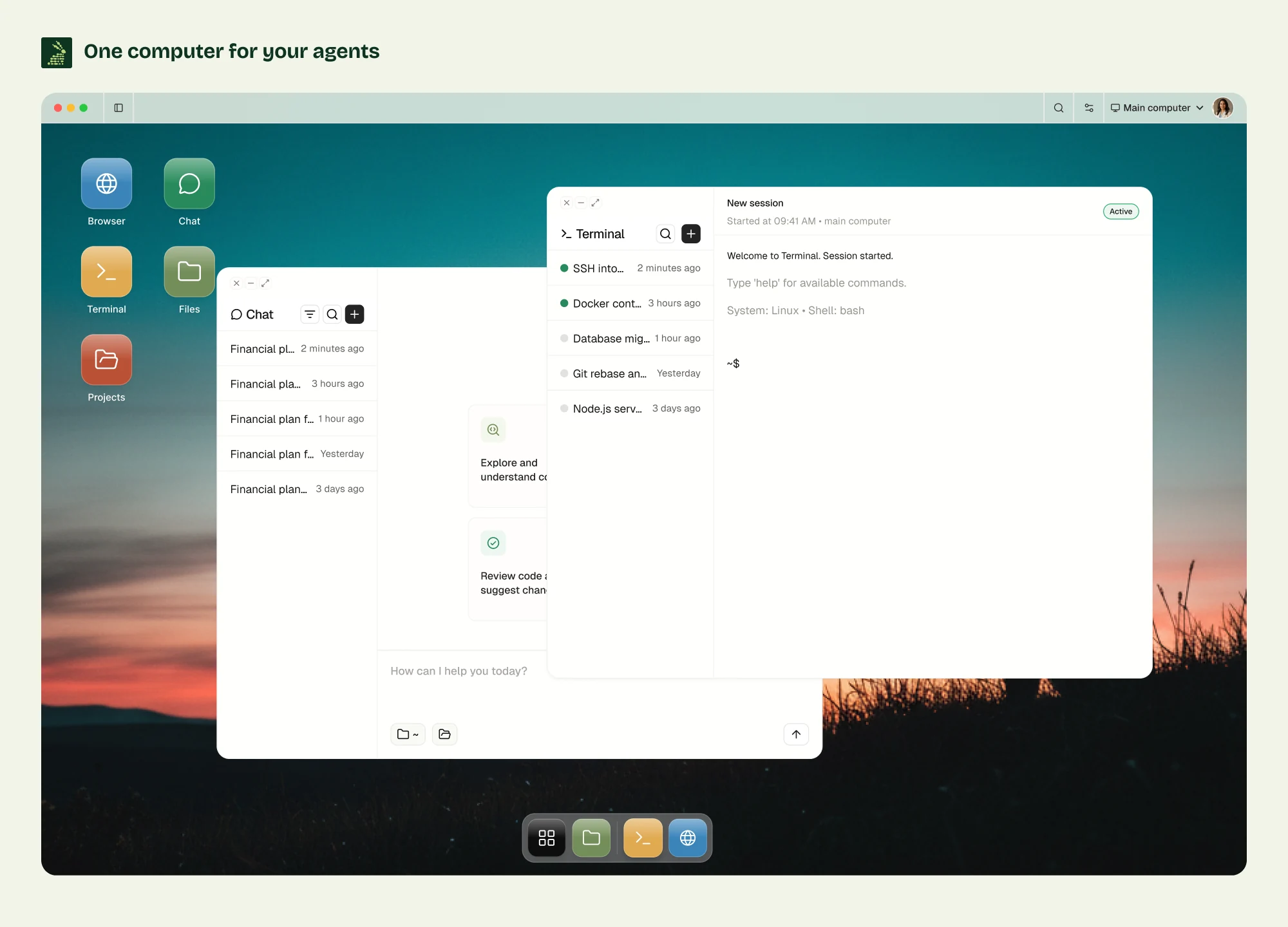
03 Connected tools
Connect the tools your work lives in.
Your projects already span more than one app. Connect supported tools such as GitHub, Gmail, Calendar, Drive and Slack, then give your agent a task with a clear outcome.
Each connection uses the access you grant. Start with the one your first task actually needs.
See the integrations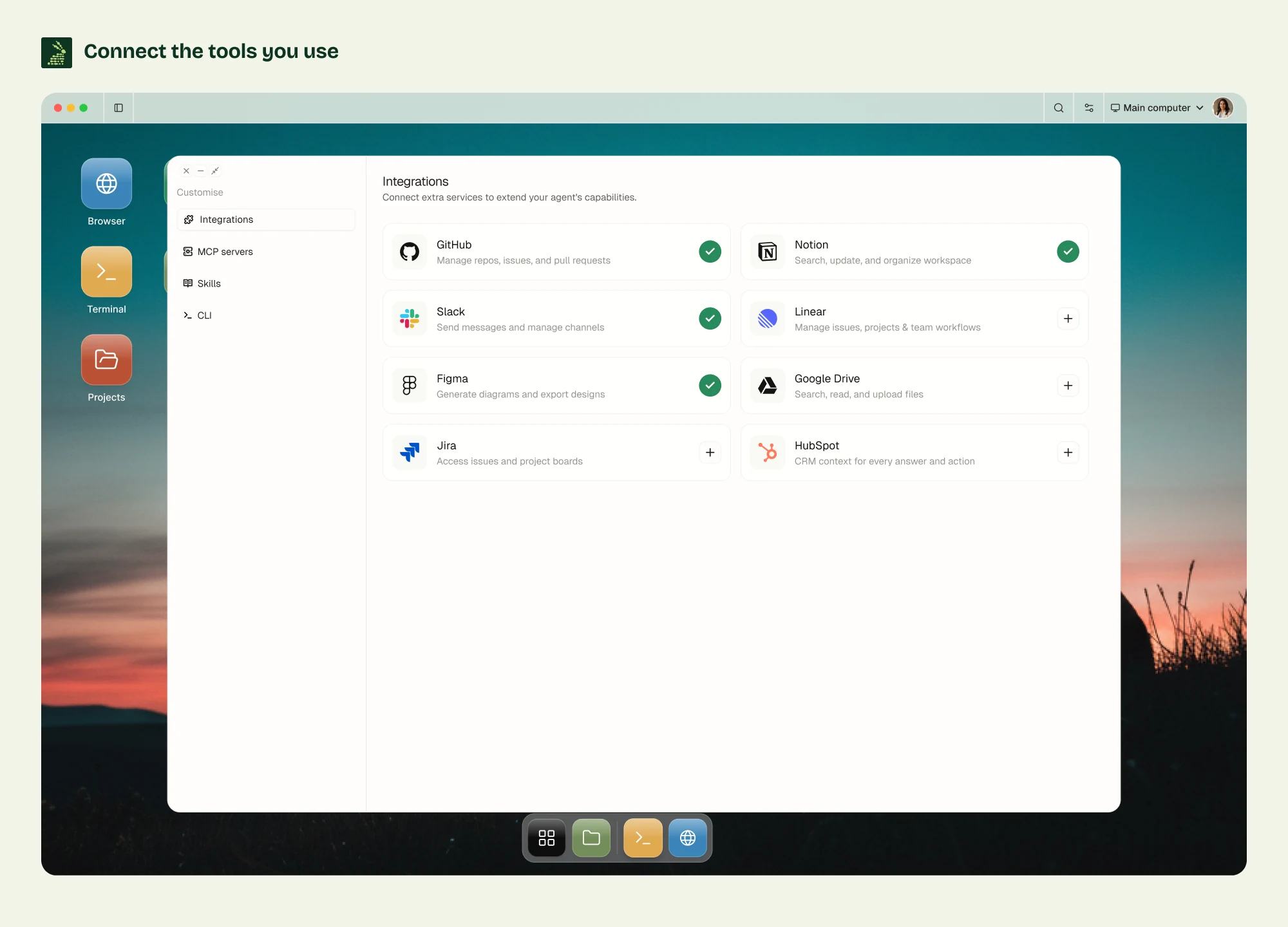
04 Work you keep
Build something you can come back to.
A useful result can be a brief in your files, a change in your repository, or an app you use every day. Keep the project beside the tools and instructions that helped create it.
Save what worked as a project note or skill. Your next task can start with the standards you chose.
See how context stays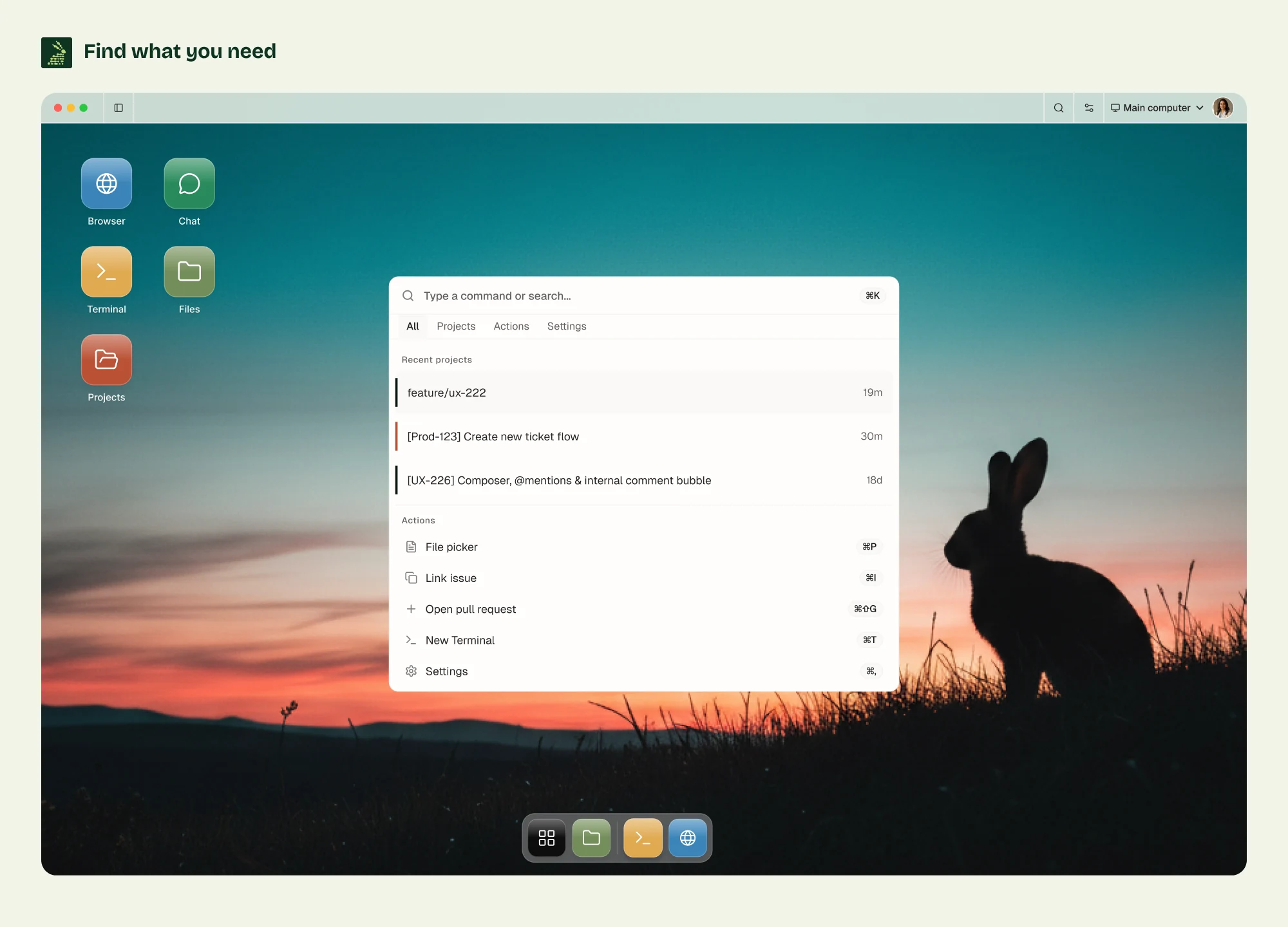
05 Keep going
Come back to the same computer.
Your Matrix computer runs in the cloud. Leave a supported background task there, close your laptop, and return to its files and results from your next session.
Always-on compute is available from the $20 plan. Running agents still depend on valid credentials, available AI usage and the limits of their tools.
Find your cloud planOne computer.
More room for what you do next.
Does your workflow need a computer or a sandbox?
Both can work. Start with the shape of your workload.
Find your fit
What does your agent work on?
A persistent computer fits this workflow.
You return to the same repositories, files, installed tools and services. Keep that environment together and inspect it directly between tasks.
Try Matrix with one project and one agent. Add integrations after the first useful result.
A retained computer fits work that returns to the same environment: maintaining a project, using connected tools, inspecting files and keeping compatible services available between tasks. An elastic execution service can fit independent jobs that should start clean and release compute afterward.
Neither category guarantees that an agent completes its task. Check the actual lifecycle, permissions, model allowance and recovery behavior of the service you choose.
What a full VM gives your agent
Matrix runs a customer workspace on a per-user VPS, with its runtime installed as native host services. The VM provides an operating-system environment with its own guest kernel. It is a familiar place to install compatible tools, retain project files and run services together.
That is useful when the workspace should behave like a computer you can return to. It also brings tradeoffs: provisioned compute has an ongoing cost, the host needs updates and recovery, and multiple agents inside one VM still need file permissions and resource limits.
Saved files, a live process and a recoverable conversation are separate things. A reboot stops processes. Expired authentication or exhausted AI usage can pause a healthy agent computer. Keep useful progress in files and Git, and inspect what happened before restarting a task.
A fair comparison with agent sandboxes
“Sandbox” describes an isolated execution environment. It does not tell you whether the implementation is a container or a VM, or whether its state persists.
- Modal supports gVisor and VM runtimes, together with volumes and snapshots. Its documentation describes sandbox lifetimes of up to 24 hours and snapshot-based continuation.
- E2B provides Linux VMs that can pause and resume, retaining filesystem and memory state.
- Daytona advertises indefinite runtimes alongside snapshots, volumes and computer-use environments.
- Blaxel offers persistent microVMs with suspend/resume and background scheduling.
These are capable infrastructure options for developers building agent products. Matrix focuses on a workspace you can use directly, with agents, apps and integrations together. The decision is about the experience and operating model you want—not a claim that competing sandboxes cannot persist.
For a broader buying framework, see how to choose hosting for AI coding agents.
Set up your first agent computer
1. Choose the computer your work will run on
Open Matrix Cloud, sign in and follow onboarding. Select a plan and available region, review checkout, choose your developer tools and wait for the computer to become ready. Existing users can select their ready computer.
Always-on starts at $20/month. Choose more capacity when your workload needs it; the $100 Builder plan is aimed at heavier daily work and additional parallel agents. Compare the current resource limits and the exact price shown at checkout.
The eligible first primary computer has a 3-day trial with a card required. Billing begins at the displayed price when the trial ends unless you cancel. Creating a Matrix account does not automatically give a coding tool funded model access.
2. Authenticate one agent and connect one useful app
Open a named Terminal session on the cloud computer. Authenticate your preferred coding tool through its supported login flow there. Follow the Claude Code setup and reconnect walkthrough or the Codex guide.
For app access, open Settings → Connect Apps, choose a supported service and review its permissions. Connect only what your first task needs. The integration guide lists supported actions and account requirements.
3. Ask for a result you can check
Use a sample project or a repository you are allowed to work on. A good first task produces a small artifact with a clear stopping point:
Read this sample project's README and package scripts. Save a short setup guide in a new Markdown file, including the commands needed to run its checks. Explain any missing prerequisites. Leave existing project files unchanged and stop for my review.
Open the generated file and compare it with the source. For a later coding task, inspect the diff and test output. Useful work is something you can examine, not just a completion message.
4. Disconnect and return to the same workspace
Once the task has started, disconnect the viewing client and return to the same computer and session. Check whether the agent is working, finished or waiting for you.
Disconnecting a client is different from stopping the computer or terminating its process. Test reconnect behavior before relying on a long unattended run. If a task needs approval, valid AI access or more usage, keeping the computer on will not resolve that requirement.
Build on one reliable workflow
Start with one computer, one agent and one result. After that works, add a supported integration or a recurring workflow. For parallel writing agents, use separate branches and worktrees; separate chat sessions alone do not isolate files, ports or databases.
An always-on workspace becomes valuable when you keep coming back to useful work. Give your agent a concrete task, keep its output visible and increase capacity when your workload calls for it.