What is a cloud computer for AI agents?
A practical guide to remote agent work: terminals, files, task outputs, persistence limits, and how to run your first Matrix workflow.
A cloud computer for AI agents is a remote computing environment where the agent can work with a repository, terminal, files and installed tools. Your laptop connects to that environment to direct and inspect work. It does not have to execute every command itself.
Matrix provides that computer with desktop, browser and CLI access. The useful output is concrete: a changed file, a test result, a draft or a running development service you can inspect. Start with the workflow you need, then decide whether a persistent computer is the right place to run it.
What belongs on the computer?
A repository task usually needs more than a prompt. It needs source files, dependencies, a working directory, tool authentication and somewhere to put the output. Keeping those together can reduce repeated setup across tasks.
| Part of the workflow | What to verify |
|---|---|
| Repository and files | The expected files are on the selected computer and changes are saved. |
| Agent process | The agent is running, finished or waiting for input; these are different states. |
| Terminal session | You can identify and reconnect to the intended session. |
| Tool access | The agent has the authentication and permissions required for this task. |
| Output | You can open the changed file, diff, test log or generated artifact. |
A first workflow: fix one failing test
Use a sample repository before granting an agent a broad task. Open Matrix, select a ready computer and launch Terminal. Prepare the repository there and run its normal test command so you know the starting state.
Ask the agent to fix one failure, preserve the existing tests, rerun them and explain the diff. Stop for human review before committing or publishing. This makes completion observable: the test passes and the change actually addresses the failure.
Open the file in Files or Editor, inspect the diff and run the test command again. The Claude Code walkthrough takes you through setup and reconnect. The Codex CLI guide covers another terminal-agent route.
Persistence has boundaries
Saved files, a live process and a recoverable agent conversation are separate properties. Files can remain on disk when a process exits. A host reboot stops running processes. A provider limit or expired credential can interrupt an otherwise healthy computer.
Disconnecting the viewing client does not itself suspend the remote host. Work can continue in a persistent remote session while the computer remains running. Check the selected plan's lifecycle and test the agent's reconnect behavior; do not assume every surface can resume or steer every agent identically.
Keep useful progress in files and Git. When returning to a task, inspect the last output before starting another agent against the same working directory.
How does this differ from a chat project or a sandbox?
A chat project can organize instructions and source material. A cloud computer also provides an execution environment you can operate directly. That distinction matters when the task needs a shell, dependencies, repository state or long-lived development services.
An API sandbox can be a good fit for isolated jobs with explicit creation and cleanup. A persistent computer can fit work that returns to the same environment between tasks. Both categories have different lifecycle and billing options, so compare the specific service configuration you would use.
A raw VPS also gives you remote compute. Choose it when you want to operate the server and access tooling yourself. Matrix packages a computer with desktop/browser access, terminals and file surfaces. See the VPS comparison for the tradeoff.
Multiple agents need isolation
Two writing agents should use separate worktrees and branches. Distinct sessions alone do not isolate their files, development ports or databases. Assign independent tasks and integrate their results through one deliberate review sequence.
The worktree guide covers repository isolation. Start with one reliable task before scaling to Claude Code and Codex in parallel.
Getting started with Matrix
Follow the quickstart to sign in, select or provision a computer and authenticate your agent. Use the desktop guide if you want a native window into that computer. Review current plans and the terms at checkout for the workload you intend to run.
For a business workflow, begin with synthetic input and a reviewable draft. The company OS series describes broader architecture and pilot ideas; it should not be read as a claim that every proposed integration or governance control is already available.
Try a first task in Matrix
Use a sample repository to produce a change, a test log and a file you can reopen.
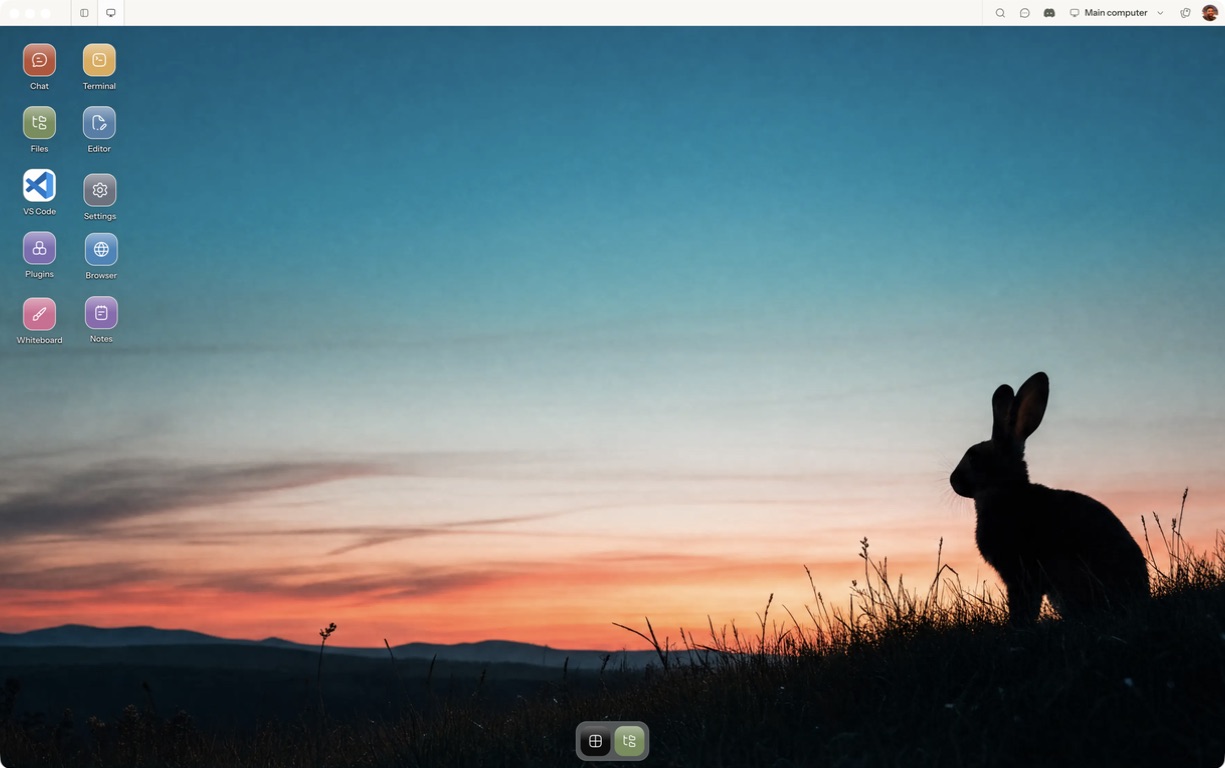
- Follow the quickstart to sign in, choose a computer and complete any required provisioning. To use the native app, follow the desktop installation and approval steps.
- Open a separate session with a small sample project or synthetic input. Configure the agent access needed for that task and make the expected output explicit.
- Verify which state belongs to the cloud computer and which depends on the running agent.
For a worked coding example, use the setup and reconnect walkthrough. Inspect the result before expanding the scope or leaving a longer task unattended.
Open Matrix →Read the quickstart →Current plans and pricing →